AboutTermsPrivacyContact
 
Updating
Brushes

Brushes

Released: 2018-11-20
© 2020 Envoza Limited
Brushes - QR Code
Version 4.2.0
4+
Download on the App Store
Version 4.2.0
4+
Download on the App Store
Released: 2018-11-20
© 2020 Envoza Limited

iPhone Screenshots

Screenshot
Screenshot
Screenshot
Screenshot
Screenshot
Screenshot
Screenshot
Screenshot
Screenshot
Screenshot

iPad Screenshots

Screenshot
Screenshot
Screenshot
Screenshot
Screenshot
Screenshot
Screenshot
Screenshot
Screenshot
Screenshot

Description

Brushes 4 is the latest iteration of the app that started the iPhone and iPad painting revolution. Redesigned with a clean and modern user interface, Brushes supports iPhone and iPad with optimisation for the iPhone X, iPhone XS, iPhone Pro and iPad with Apple Pencil.
• Highlights:
- Clean and modern user interface with light and dark modes.
- Files based painting gallery.
- New canvas interface.
- Apple Pencil support with pressure curve.
– Unlimited undo and redo.
- Continuous auto-save.
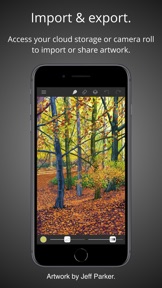
- Cloud Drive import and export.
• Parameterized Brushes:
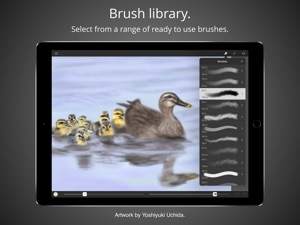
- Selection of ready to use brushes with customisable settings.
- Create your own custom brushes from millions of permutations.
- Generate random brushes for inspiration.
- Dynamic adjustment of brush size and opacity.
• Layers:
- Layer your artwork for greater control.
– Lock and hide layers.
– Use alpha lock to only paint where pixels already exist.
– Adjust individual layer opacity.
– Duplicate, rearrange and merge layers.
– Apply layer blending modes: normal, multiply, screen, exclude.
- Color fill any layer.
– Invert layer color and desaturate.
– Flip and arbitrarily transform layers.
– Adjust the color balance per layer.
– Adjust layer hue, saturation and brightness.
• Colors:
- Colour picker with hue ring and saturation square.
- Store and recall your favourite colors in swatches.
- Sample painting colors with the eyedropper tool.
• Apple Pencil:
- Intuitive and powerful pressure curve to match your style.
- Configurable realtime pressure based adjustment of brush size and opacity.
• Creation:
- Preset canvas sizes for paper, photographs, iPhone and iPad screens, film and television displays.
- Custom canvas size.
• Import, export and sharing:
- Import images directly from your camera roll.
- Import PNG and JPEG images from cloud services.
- Export your paintings for sharing or importing into other apps as PNG and JPEG to all cloud storage services or as photos directly to your camera roll.
- Compatible with paintings created by Brushes 3 and Brushes Redux.
• Light and dark appearances:
- Choose between light and dark monochrome appearances, or current system setting.
- Minimal use of user interface color so that tints in the user interface do not distract from or influence your artwork color choices.
Acknowledgements.
Thank you to Angela Ali, Jason M., Jeff Parker, Sandra Perez and Yoshiyuki Uchida for contributing artwork to the App Store screenshots. Please visit our website to see more of their artwork and for links to their portfolios.
History.
Brushes was originally created by Steve Sprang for iPhone in 2009 and for iPad in 2010. His last version, Brushes 3 was released in 2012, but was removed from the App Store in 2015. I took over development to modernise and support an app that has continued to be enjoyed by so many artists.

What's New in Version 4.2.0

Files-based Document Browser.
The Brushes gallery in now based on the Files app, bringing a familiar document management interface and rich functionality.
- Directly create and open paintings in iCloud Drive or your local device.
- Search your paintings.
- Sort your paintings.
- Create folders.
- Display the gallery as thumbnails or list view.
- View by recents or browse.
Where are my existing paintings?
Your existing paintings are stored on your iPhone or iPad where they were created. You can find them by going to Locations and choosing 'On My iPhone/iPad' then tapping on the Brushes folder. If you would like to store these in iCloud Drive from now on; tap 'Select', tap 'Select All', then tap 'Move' and choose the new location, preferably in the Brushes folder in iCloud Drive. Choosing 'Move' only moves files when the source and destination are on the same device or cloud service. So this will actually copy your paintings, not move them. You may want to delete them from your device once you have confirmed they are all safe on iCloud Drive.
Where are my new paintings?
Your new paintings will be stored in iCloud Drive and automatically synced. You can find where by going to Locations and choosing 'iCloud Drive' then tapping on the Brushes folder.
If you would like to continue to store your paintings locally on your device; open the Settings app, tap on Brushes in the list of apps on the left, tap on 'Document Storage' and choose 'On my iPhone/iPad'.
Please note that only iCloud Drive supports package directories that Brushes uses for painting storage. Paintings cannot be created or edited on third-party storage providers such as Dropbox, Google Drive or Microsoft OneDrive. Please use either iCloud Drive or local storage on your iPhone or iPad.
If you have any problems or questions about this release, please email us from within Brushes or at brushes@envoza.com.

Seller

Name

Envoza Ltd

URL

Information

Developer

Categories

Version

4.2.0

Size

13.3 MB

Game Center

No

VPP Device Licensing

Yes

Rating

Rated: 4+

Compatibility

iOS 13.0 or later

Devices

iPhone 5s, iPhone 6, iPhone 6 Plus, iPhone 6s, iPhone 6s Plus, iPhone SE, iPhone 7, iPhone 7 Plus, iPhone 8, iPhone 8 Plus, iPhone X, iPhone XR, iPhone XS, iPhone XS Max, iPhone 11, iPhone 11 Pro, iPhone 11 Pro Max, iPhone SE (2nd generation), iPhone 12, iPhone 12 Pro, iPhone 12 Pro Max, iPhone 12 mini, iPad (5th Generation) Wi-Fi, iPad (5th Generation) Wi-Fi + Cellular, iPad (6th generation) Wi-Fi, iPad (6th generation) Wi-Fi + Cellular, iPad Pro, iPad Pro (Cellular), iPad Pro (9.7-inch), iPad Pro (9.7-inch) (Cellular), iPad Pro 12.9-inch (2nd generation), iPad Pro 12.9-inch (2nd generation) Wi-Fi + Cellular, iPad Pro (10.5-inch), iPad Pro (10.5-inch) Wi-Fi + Cellular, iPad Pro (11-inch), iPad Pro (11-inch) Wi-Fi + Cellular, iPad Pro 12.9-inch (3rd generation), iPad Pro 12.9-inch (3rd generation) Wi-Fi + Cellular, iPad Air, iPad Air (Cellular), iPad Air 2, iPad Air 2 (Cellular), iPad Air (3rd generation), iPad Air (3rd generation) Wi-Fi + Cellular, iPad mini Retina, iPad mini Retina (Cellular), iPad mini 3, iPad mini 3 (Cellular), iPad mini 4, iPad mini 4 (Cellular), iPad mini (5th Generation), iPad mini (5th Generation) Wi-Fi + Cellular, iPad (7th generation) Wi-Fi + Cellular, iPad Pro 11-inch (2nd generation), iPad Pro 11-inch (2nd generation) Wi-Fi + Cellular, iPad Pro 12.9-inch (4th generation), iPad Pro 12.9-inch (4th generation) Wi-Fi + Cellular, iPad Air (4th Generation) (Wi-Fi), iPad Air (4th Generation) (Wi-Fi + Cellular), iPad (8th generation) Wi-Fi, iPad (8th generation) Wi-Fi + Cellular, iPod touch (6th Generation), iPod touch (7th generation)

Languages

English

App Store: Customer Ratings

Ratings & Reviews

4.4 of 5 (67 Ratings)

App Store: Customer Reviews

2020-07-26

Simple black lines impossible

How do I get a simple BLACK line? All I seem to get is grey and it is driving me nuts? I’ve used Brushes for years yet in the new versions I can’t manage to find a BLACK line - for my graphics BLACK is critical and I am stumped as to why I cannot creat one - regardless of brush or opacity they all come out grey and I’m really frustrated.
Dpeterson603
Version 4.1.5
2020-07-01

Brushes

Great for making iPad paintings, but quits and often closes unexpectedly without saving your work
neiloh987
Version 4.1.5
2019-08-18

Pretty good, little buggy

I was very psyched to see someone maintaining Brushes again, and although it’s almost as good as it once was back in the day, there are a few bugs that keep it from being truly excellent.
1) “Merge Down” behavior differs from real-time layer blending behavior. For example, say you have a layer with its blend mode set to Screen. Under that is a normal layer with some black pixels and some transparency. Brushes will (correctly) show only the parts of the upper layer (the Screen layer) that overlap with the black pixels, and everything overlapping with transparency will not show up. If you do a “Merge Down” on the upper layer, Brushes will merge the whole layer over both the black pixels AND the transparency, such that the final resulting layer does not match what you see when the two layers are separate. I’ve been using this technique to “cut out” shapes from images since the days of Photoshop 7 (and in earlier versions of Brushes), so this bug is pretty irritating.
2) “Duplicate Layer” functionality does not create an exact replica of the duplicated layer; rather, some compression is performed during the duplication such that the duplicate layer can have fuzzy edges. This is a problem if you’re working with a perfectly sharp one-pixel line and want to extend it—the only way is to do so manually. But beyond that idiosyncratic use case, I just get this nagging sense of doubt when I go to duplicate layers. Now I have to track which layer is the high-res original to copy from and which are the lower-res copies. This adds work and subtracts fun.
3) The “Transform” feature introduces visual artifacts, even if you just translate the layer (no resizing). Draw a line, then drag it a little bit in one direction, and you’ll get these gross-looking dark edges around your line.
It’s still a pretty good app (definitely worth the $2), but it’s not as useful as the original Brushes if you’re trying to do highly detailed work.
Drewt_my_horn
Version 4.0.9
2019-06-12

Brushes

Simple-to-use art app which exports as transparent png—all at an excellent price—highly recommend!
BAR112
Version 4.0.8